Is your Outlook application running slow, freezing on startup, or failing to open emails? If the answer is yes, then it is most likely that your OST file is too large or oversized. In this case, a simple solution is reduce the data file size. Here, we will discuss different ways to reduce the size of OST file that can help you fix the issues related to file size.
Overview of the OST file
An OST file is a replica or cached copy of your mailbox data on the mailbox server (e.g. Exchange Server). This file is stored on your local storage and is synchronized regularly with your mailbox on the server. There is a size limit defined by Microsoft for the OST files in Outlook. For instance, in Outlook 2010 and later versions, OST files can go up to 50 GB, and in Outlook 2007, it is 20 GB.
What are the Ways to fix the OST File Size Issues?
You can fix the OST file size issues by reducing its size. Below, we have shared some methods that will help you reduce the size of the OST file:
1. Compact the OST File
When you delete emails from your Outlook, the size of your mailbox may not reduce because the space from deleted emails becomes ‘white space’. You can reclaim the white space by compacting the OST file. This will help reduce the file size. Here’s how you can compact the OST file:
- In Outlook, click File.
- Go to Account Settings > Account Settings.
- Under the Data File tab, select OST file that you want to compact.
- Click on Settings.
- Go to Advanced > Outlook Data File Settings.
- Click Compact Now and then click OK.
Note: Compacting the OST file does not cause any data loss.
2. Archive your Old Emails
You can archive your older or less frequently used emails. This helps you keep your OST file smaller and manageable. The steps for archiving emails are:
- Open your Outlook application.
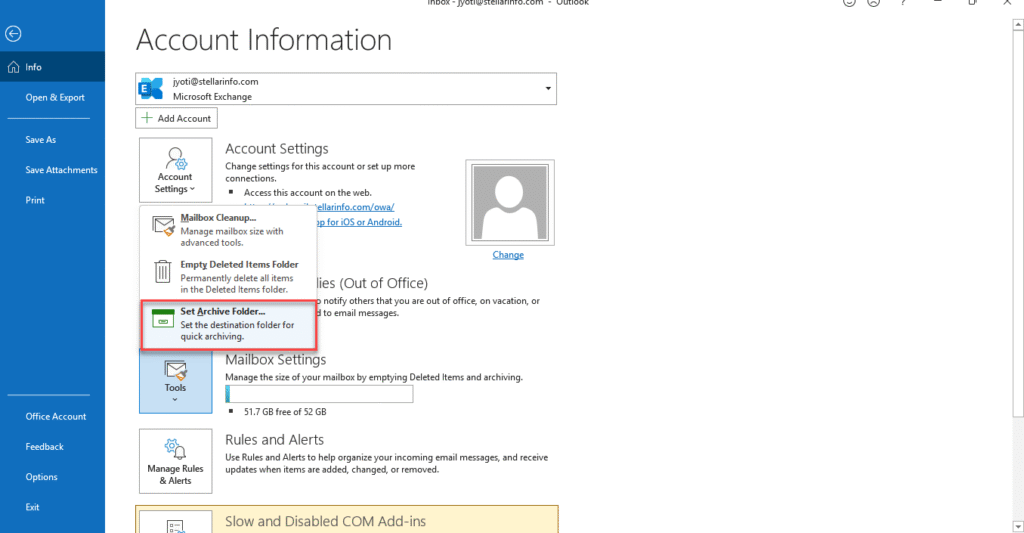
- Go to File > Tools. Click on Set Archive Folder.
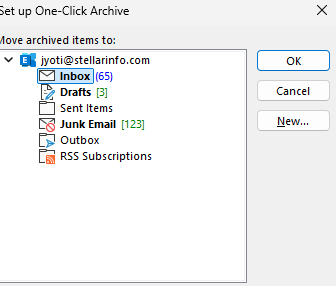
- Choose a folder from the list for archive.
- Now, choose a date in the ‘Archive items older than’ section.
- Choose a location to save the archived PST file by clicking on Browse.
- Click OK.
This will move the selected emails to a PST file, thus decreasing the size of your mailbox (OST file).
3. Use the Clean Up Tool
You can also use the mailbox cleanup tool in Outlook to reduce the size of OST file. Here’s how to use this tool:
- Open Outlook and click on File.
- Click on Tool and select Mailbox Cleanup.
- You can do the following on the Mailbox Cleanup window:
- Check your mailbox size by clicking on View Mailbox Size.
- Use the option Find items older than a particular date.
- You can find large emails and attachments by using the option Find large items.
- Click on Empty Deleted Items Folder to clear all the items stored in Deleted Items folder.
- Choose Archive items to move older mail items to an archive folder/file.
4. Disable the Download Shared Folder Option
If you’re a member of multiple shared folders, then you have been receiving a lot emails. You can prevent downloading the shared folders data into your OST file by disabling the Download Shared Folder option. Simply follow these steps:
- Open Outlook. Go to File > Account Settings > Account Settings.
- Choose Data Files in the Account Settings window and select the Outlook Data File (.ost).
- Select Settings and then choose the Advanced tab.
- Uncheck the Download Shared Folder box, click on Apply, and then click OK.
Note: Please keep the ‘Use Cached Exchange Mode’ checkbox selected.
5. Adjust the Sync Slider Setting
Outlook has a sync slider option to select how much data you want to download into the OST file. If this option is set to All, you can adjust it to a shorter duration. Let’s say, 6 months, 1 year, or 2 years. This will help keep the data file size small. Follow the given steps to adjust the sync slider settings:
- Launch your Outlook application.
- Go to File > Info > Account Settings > Account Settings.
- Choose your email profile
- Click on Change.
- Under Offline Settings, you will see the Mail to keep the offline slider.
- If the slider is set to All, adjust it to accordingly – 6 months, 1 year, or 2 years.
- Now, click on Next and then click on OK.
- Restart Outlook to apply the changes.
Tip: If your OST file becomes inaccessible because of large size or any other issue, then you can use recover its data by using a specialized OST to PST converter tool, such as Stellar Converter for OST to recover the data. This tool can extract data from such an OST file and save it in PST. It has an Auto Split feature that can split the resultant PST file into smaller, manageable sizes.
Conclusion
With time and continuous mail flow, the OST file becomes large. Due to this, you may experience performance issues and other problems in Outlook. You can reduce its size to fix and prevent such issues. You can follow the methods mentioned in this article to reduce the OST file size.
In case your OST file becomes inaccessible, you can use a professional OST to PST converter tool, like Stellar Converter for OST, to convert it into a PST file. This tool converts the OST file by maintaining complete data integrity.
