A DMARC record is a DNS TXT record that tells receiving mail servers how to handle email that appears to come from your domain but fails authentication checks. DMARC stands for Domain-based Message Authentication, Reporting, and Conformance, and it builds on two core controls: the SPF record and DKIM.
When you create a dmarc record online settings correctly, mailbox providers such as Google, Microsoft, Yahoo, and others can verify whether messages are legitimately authorized by your domain. This improves email delivery, reduces spoofing, and strengthens overall email authentication.
How DMARC Protects Email Delivery
DMARC helps protect your brand and users by checking whether a message passes SPF or DKIM and whether those results align with the visible “From” domain. If the message fails, your DMARC policy can tell receivers to do nothing, quarantine the message, or reject it.
For beginners, the safest first step is usually to create a DMARC record with a monitoring-only policy, such as:
v=DMARC1; p=none; rua=mailto:dmarc-reports@example.com
This lets you collect a DMARC report before enforcing stricter rules. Over time, this supports better email delivery, better security, and safer DMARC deployment.
Prerequisites Before You Create a DMARC Record: SPF, DKIM, and DNS Access
Before you create DMARC record entries, make sure your domain is ready. DMARC depends on properly configured SPF and DKIM, and you need access to your DNS provider to publish the record.
Confirm DNS Access
To publish DMARC record settings, you must be able to add or edit TXT records in your DNS zone. This may be managed through your domain registrar, hosting provider, corporate IT team, or a dedicated DNS platform.
You will publish the DMARC record at:
_dmarc.example.com
If you are configuring a subdomain, such as mail.example.com, the record may be placed at:
_dmarc.mail.example.com
A DNS lookup or domain checker can confirm whether the DMARC domain already has a record. Tools such as MXToolbox SuperTool, DNS Lookup, and dmarcian tools are useful for quick diagnostics.
Check Your SPF Record
Your SPF record lists the mail servers and services allowed to send email for your domain. For example, if you use a CRM, marketing platform, helpdesk, or transactional email product, each authorized sender may need to appear in your SPF record.
You can use an SPF Record Generator or a record builder to reduce syntax errors. However, avoid creating multiple SPF TXT records for the same domain, because that can break SPF validation and harm email delivery.
Verify DKIM Signing
DKIM adds a cryptographic signature to outbound messages. A receiving server uses the public DKIM key in DNS to confirm that the message was not altered and was signed by an authorized sender.
Use tools such as DKIM Inspector, DKIM Validator, or Email Header Analyzer to confirm DKIM is working. If DKIM is not active, you can still create DMARC record settings, but your enforcement path will be limited until DKIM passes consistently.
Understanding DMARC Tags: v, p, rua, ruf, pct, adkim, and aspf
A DMARC record is made of tags separated by semicolons. A basic record may be simple, but an advanced setup can include alignment, reporting, and percentage-based enforcement.
Required Tags
The two most important tags are:
- v=DMARC1 — identifies the record as a DMARC record.
- p= — defines the policy for the domain.
Common policy values include:
- p=none — monitor only.
- p=quarantine — send suspicious messages to spam or quarantine.
- p=reject — reject messages that fail DMARC.
Reporting and Alignment Tags
Other useful tags include:
- rua= — sends aggregate DMARC reports to a mailbox or platform.
- ruf= — sends forensic reports where supported.
- pct= — applies the policy to a percentage of failing messages.
- adkim= — controls DKIM alignment, relaxed or strict.
- aspf= — controls SPF alignment, relaxed or strict.
Relaxed Alignment
Relaxed alignment allows a subdomain to align with the organizational domain. For example, news.example.com can align with example.com.
Strict Alignment
Strict alignment requires an exact match. This is useful for high-security environments such as Financial Services, Government, Healthcare, and Organizations & Enterprises.
Choosing a Beginner-Friendly Setup Option
Beginners can create DMARC record settings manually, but tools reduce mistakes. A DMARC Record Generator is ideal when you want a guided experience, while a DMARC Record Wizard can help you choose policy, reporting addresses, and alignment options.
Use a DMARC Record Generator or DMARC Record Wizard
A DMARC Record Generator typically asks for your domain, desired policy, reporting address, and alignment preferences. Then it helps you generate DMARC record syntax that can be copied into DNS.
A DMARC Record Wizard is especially helpful for Individuals & Small Businesses, MSPs & IT agencies, Nonprofit Organizations, and Educational Services that may not have dedicated email security staff. Some free DMARC tools also include DMARC inspection, MX Lookup, Blacklists checks, and header testing.
Manual Edit for Advanced Setup
A manual edit may be better if you have complex mail flows, many third-party senders, or separate policies for a subdomain. For example, your main domain could use p=quarantine, while a subdomain used only for transactional mail could move faster to p=reject.
This setup option is common in Organizations & Enterprises using a DMARC Management Platform, Delivery Center, Alert Central, Domain Overview, Detail Viewer, and Source Viewer to review mail sources.
Step-by-Step Guide to Creating and Publishing a DMARC Record
Follow these steps to create DMARC record settings safely and then publish them.
Step 1: Identify Your Sending Sources
List every service that sends email for your domain or subdomain. This may include Microsoft 365, Google Workspace, Salesforce, HubSpot, Zendesk, Mailchimp, SendGrid, or internal servers.
Use MXToolbox, SuperTool, Email Header Analyzer, and analyze headers workflows to identify unexpected senders. A delivery center or email health dashboard can also help reveal gaps.
Step 2: Validate SPF and DKIM
Confirm that each sender is covered by your SPF record and that DKIM is active wherever possible. If SPF passes but DKIM fails, or DKIM passes but alignment fails, DMARC may still fail.
Run diagnostics with DMARC Inspector, DKIM Inspector, DKIM Validator, DNS Lookup, and MX Lookup before you publish DMARC record changes.
Step 3: Build the DMARC Record
Use a DMARC Record Generator, DMARC Record Wizard, or record builder to create a starter policy:
v=DMARC1; p=none; rua=mailto:dmarc@example.com; pct=100
For a cautious DMARC deployment, start with p=none. This lets you monitor legitimate and unauthorized traffic before enforcing.
Host Name
Use:
_dmarc
or, for a subdomain:
_dmarc.subdomain
TXT Value
Paste the generated DMARC record exactly as provided by your DMARC Record Generator or DMARC Record Wizard.
Finalize the Change
Before you finalize, check spelling, semicolons, mailbox addresses, and whether your DNS provider automatically appends the domain name. Then publish DMARC record settings in DNS.
Publishing the DMARC Record in DNS
To publish DMARC record entries, create a TXT record in your DNS control panel. The host is usually _dmarc, and the value is the full DMARC record.
After saving, DNS propagation may take minutes or hours. Use a domain checker, DMARC inspection tool, or DNS lookup to verify the record is visible. If the record does not appear, check TTL, zone selection, and whether you edited the correct DMARC domain.
For a subdomain, verify that the subdomain has its own DMARC record if you need a separate policy. Otherwise, the organizational domain policy may apply.
Testing, Monitoring, and Updating Your DMARC Policy Safely
Once you publish DMARC record settings, the work shifts to monitoring and improvement. DMARC reports show who is sending mail, whether SPF record checks pass, whether DKIM aligns, and which sources may need correction.
Move from Monitoring to Enforcement
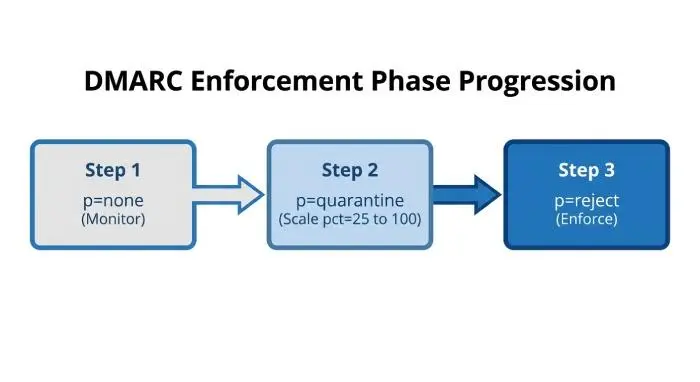
A safe progression looks like this:
- Start with p=none.
- Review reports in a DMARC management platform.
- Fix SPF record, DKIM, and alignment failures.
- Move to p=quarantine with pct=25.
- Increase to pct=100.
- Move to p=reject when confident.
dmarcian, MXToolbox, and similar products and solutions can help with DMARC management, DMARC Services, DMARC Deployment, DMARC Support, DMARC Onboarding, and DMARC Consultation. Features such as Alert Central, Source Viewer, Detail Viewer, Delivery Center, and API Reference can support ongoing operations.
Useful Resources and Operational Checks
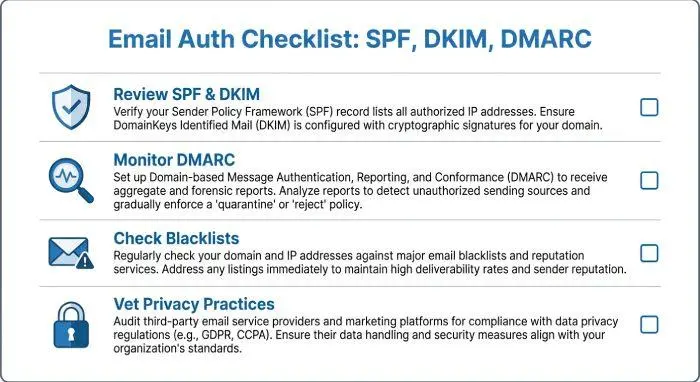
Keep a regular review process for your DMARC record, SPF record, DKIM selectors, and third-party senders. Check blacklists, review email delivery trends, and investigate authentication failure before tightening policy.
Useful resources include dmarcian tools, free DMARC tools, MXToolbox SuperTool, Blacklists, DNS Lookup, Email Header Analyzer, DMARC Inspector, DKIM Inspector, and DKIM Validator. Before using any external platform, review its terms and conditions, privacy practices, and contact options—especially if you handle sensitive data in Healthcare, Government, Financial Services, or other regulated sectors.
