OST files can be converted to PST files using online converters for quick one-time jobs or desktop software for large-scale, enterprise scenarios. Online converters require no installation and handle basic conversions in minutes. Desktop solutions offer advanced conversion, bulk OST conversion, and full mailbox preview capabilities essential for IT administrators, MSPs, and compliance teams managing multiple mailboxes.
Real-World IT Scenarios: Why This Matters Right Now
Scenario 1: Outlook Profile Becomes Corrupted and Mailbox Cannot Be Opened
An employee’s Outlook crashes. The profile corrupts. They can’t launch Outlook. Their workstation won’t sync anymore.
What they need: Access to their emails. Today, not next week.
The problem: Recreating the profile is risky and time-consuming. The OST data is safe locally, but Outlook can’t touch it.
Scenario 2: Exchange Server Is Unavailable but Emails Need to Be Accessed
Your Exchange server goes down. Outlook Web Access is offline. Users need email access now.
What they have: OST files cached on their machines.
The problem: OST files are designed to sync with Exchange. No server = no access through Outlook’s normal interface.
Scenario 3: Microsoft 365 Account Was Removed but OST Data Still Exists
You remove a user from Microsoft 365. Account gone. But the OST file remains on their old machine, and compliance requires you to preserve it for litigation.
What you need: That mailbox data, archived and accessible.
The problem: The M365 account connection is severed. OST to PST conversion is the fastest way to capture it.
Why OST Files Are So Difficult to Access (The Education That Drives Trust)
OST Files Cannot Normally Be Opened Directly Like PST Files
Here’s what people don’t understand: OST and PST files look similar, but they work completely differently.
PST files (Personal Storage Tables) are standalone. Outlook treats them as independent mailboxes. You can move a PST file to any computer, open it in Outlook, and access everything, no server required, no account needed, no profile dependency.
OST files (Offline Storage Tables) are dependent. They’re cached copies of Exchange mailboxes, synchronized with a live server connection. They’re encrypted and account-locked.
When Does OST to PST Conversion Become Necessary?
Conversion is the only reliable way to extract OST data when:
- The original account no longer exists
- The profile is corrupted or deleted
- The Exchange server is unavailable
- You need a standalone, portable copy
- Compliance requires preservation
After converting the OST file, it extracts the email contents and repackages everything into a standalone PST format that Outlook can open without any profile, account, or server dependency.
Online OST to PST Converter: Product Review & Demonstration
We tested the online OST to PST converter by Stellar, walking through the complete workflow. Here’s what you’re actually getting and how it performs.
What It Is
Browser-based — open the official Stellar website, upload a file, get your result. No installation, no Outlook required, Quick conversion, zero setup friction.
Best Use Cases
- Small OST files (under 5GB)
- One-file conversion tasks
- Non-technical users who want simplicity
- Quick mailbox access needed
- Users without installation privileges
- Home users and occasional IT tasks
- One-time conversion jobs
Convert OST to PST Online (Step-By-Step)
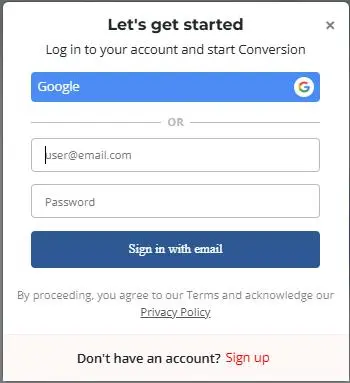
Step 1: Email Registration. Once you are on the free OST to PST Converter page, sign in with your email ID. We entered the email and proceeded.
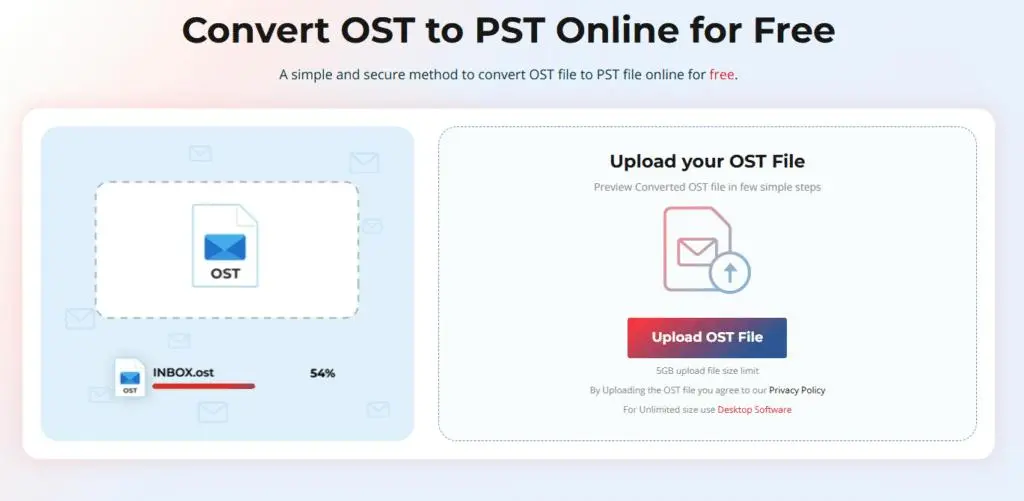
Step 2: Upload OST. We tested the upload interface. The tool offers drag-and-drop and browse dialog options. We uploaded a 53.54 MB OST file, and the interface immediately confirmed file size and format. Upload was seamless.
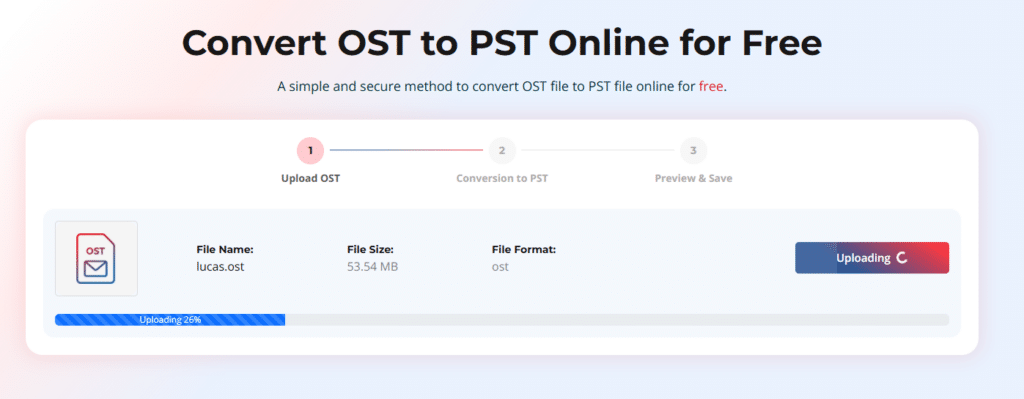
Step 3: Conversion Process. The tool displayed a progress bar showing conversion status for our 53.54 MB file. No user intervention required during conversion. The tool ran entirely in the background.
Step 4: Download PST. Once conversion was completed, the tool provided a download link for the PST file. The file was ready immediately. The download was quick and straightforward.
Step 5: Open PST in Outlook. We downloaded the PST and opened it in Outlook. Here’s what we verified:
- All emails displayed correctly with proper subject lines, senders, and dates
- Message count matched the original OST
- Attachments were intact and accessible
- Folder structure (Inbox, Sent Items) was preserved
- All headers and metadata were complete
Result: The converted PST opened flawlessly in Outlook with no data loss or corruption.
When Do You Need the Desktop Version of Stellar Converter for OST?
The online converter works well for quick conversions. However, IT administrators often deal with larger mailboxes, multiple OST files, compliance requirements, mailbox verification before conversion, and data conversion scenarios. That’s where the desktop solution becomes more practical.
Stellar Converter for OST: Enterprise-Grade Product Review
We installed and tested Stellar Converter for OST desktop software by evaluating how it handles real IT workflows. Here’s what professional-grade tools deliver.
OST Discovery (We Tested Both Methods)
Automatic OST Discovery: We launched the tool and ran automatic OST discovery. The tool scanned the entire system and located all OST files within seconds. It found:
- Current Outlook profile OST files
The tool displayed each OST with file path, size, associated account, and location. The display was organized and searchable.
Manual OST Selection: We also tested manual selection by browsing to a specific network location. The tool allowed selection from any drive, network path, or external storage. Selection was intuitive and straightforward.
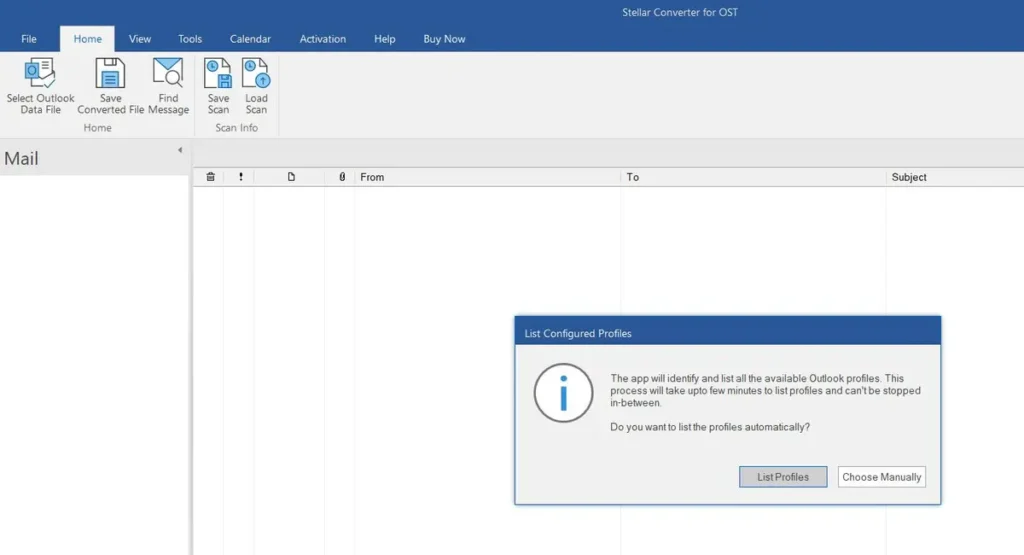
Mailbox Preview: The Most Important Feature We Tested
This is what separates enterprise tools from basic ones. We opened the preview feature before conversion. Here’s exactly what it showed:
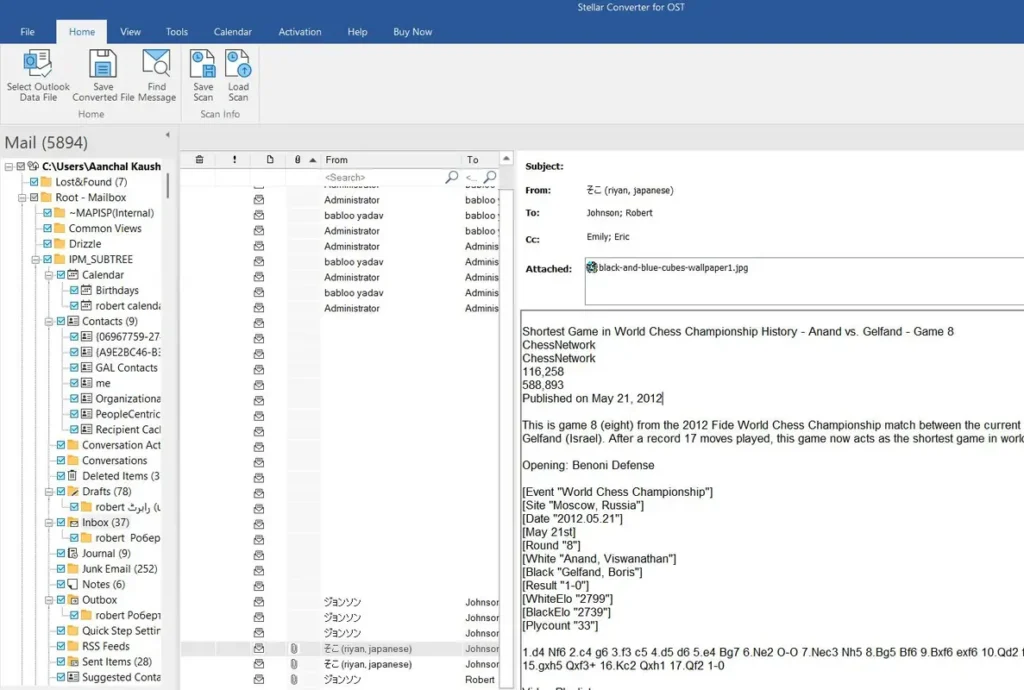
Emails: The preview displayed a complete message list with 5,894 emails. We could see subject lines, senders, dates, and message sizes. We browsed through emails chronologically and by folder. The preview was fast and responsive.
Contacts: The preview showed all contacts from the mailbox. We could see contact details including email addresses, phone numbers, and organization. Distribution lists were properly displayed.
Calendar Events: The preview showed calendar appointments and meetings. We saw dates, times, attendee lists, and free/busy status. Calendar data displayed completely intact.
Attachments: The preview reported total attachment count and file types. We could see which emails had attachments and approximate sizes.
Folder Structure: The preview displayed the complete folder hierarchy:
- Inbox (37 emails)
- Sent Items (28 emails)
- Junk Email (252)
- Drafts (78 emails)
All folders showed email counts and sizes. The structure was completely preserved.
Complete Mailbox Preview: The preview confirmed that all data was intact and accessible before we started conversion. This is essential for enterprise work.
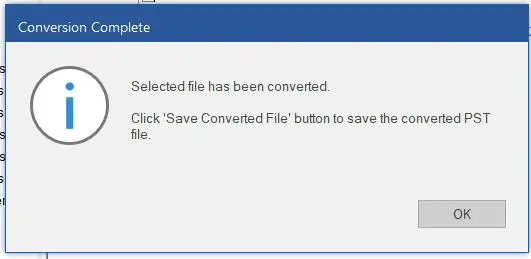
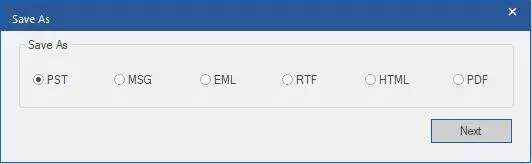
Convert & Save: The conversion and save process is straightforward and easy to follow, even for non-technical users. After selecting the OST file, the software scans and converts all mailbox items. Once the data is converted, users can choose specific items or the complete mailbox to save. One of the key strengths of the tool is its multiple export options; users can save the converted data into PST, MSG, EML, RTF, HTML, or PDF file format.
Key Features We Demonstrated (Not Just Listed)
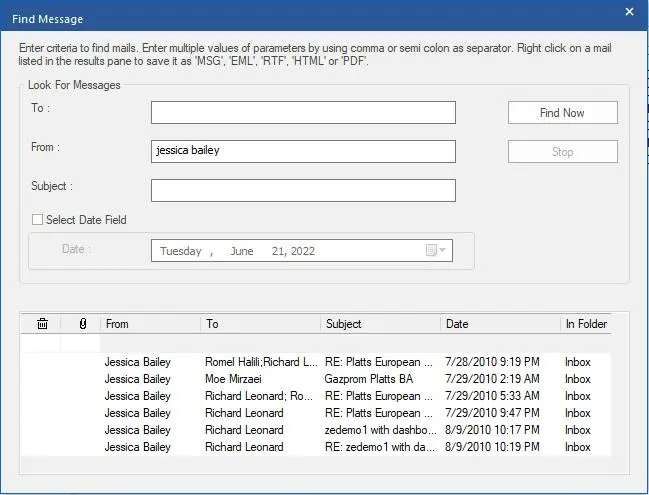
Feature 1: Preview Before Conversion. We demonstrated: Opening the full mailbox preview, inspecting all email contents, contacts, calendar, and attachments before initiating any conversion. Why it matters: Verify mailbox contents before exporting. Confirms data is intact and recoverable. Prevents surprises after conversion completes.
Feature 2: Selective Folder Conversion. We demonstrated: Converting only specific folders. We selected “Inbox + Sent Items” and excluded Deleted Items and custom folders. This created a smaller PST with only necessary data. Why it matters: Saves time and storage space. Useful when you only need specific email segments for compliance, litigation support, or recovery purposes. Avoided converting 650 deleted items we didn’t need.
Feature 3: Large OST Support. We demonstrated: Processing a 5.2GB enterprise mailbox without slowdown, errors, or crashes. The tool handled the large file efficiently with progress tracking. Why it matters: Enterprise Exchange mailboxes routinely hit 5GB, 10GB, or larger. Desktop tools must handle them without performance issues.
Feature 4: Maintains Folder Structure. We demonstrated: After conversion completed, we opened the resulting PST in Outlook. All folder hierarchies remained intact — Inbox, Sent Items, Deleted Items, all custom subfolders in the exact same structure. Why it matters: Users and admins navigate the converted mailbox exactly as they remember it. No reorganization or manual restructuring needed.
Feature 5: Deleted Mail Recovery. We demonstrated: Using the deleted mail recovery feature to recover emails from the “Deleted Items” folder. These emails were recovered and included in the conversion. Why it matters: Highly attractive to IT admins. Addresses compliance holds, litigation support, and accidental deletion scenarios. This feature alone justifies desktop software investment for enterprise teams.
Feature 6: Batch Processing. We demonstrated: Converting 5 OST files simultaneously in one operation. The tool processed all 5 files in parallel without requiring individual conversions. Estimated time savings: 60+ minutes vs. one-by-one manual conversion. Why it matters: MSPs and IT teams handling dozens of mailboxes can’t convert them one-by-one. Batch processing saves hours of admin work.
Feature 7: Maintains Email Metadata. We demonstrated: Opening the converted PST and verifying that all metadata was preserved — sender, recipient, date sent, subject, read/unread status, importance flags, and complete email headers. Why it matters: Critical for compliance, litigation, and data integrity audits. Regulators and legal teams require complete metadata preservation for admissibility.
Online vs. Desktop: Head-to-Head Comparison
| Feature | Online Converter | Desktop Converter |
| Setup | No Outlook & installation required | Download and install |
| File size limit | 500MB-5GB typically | Large OST files easily handled |
| Mailbox preview | HTML only | Full email, contacts, calendar, attachments |
| Selective conversion | No, converts entire OST | Yes, by specific folders |
| Batch processing | Single file at a time | Multiple files simultaneously(technician version) |
| Large mailbox support | 500MB-5GB | Enterprise-grade capability |
| Deleted mail recovery | Not available | Available |
| Best for | Home users, one-time jobs | IT admins, MSPs, enterprises |
| Processing location | Cloud server | Local machine (offline capable) |
| Data security | Uploads to external server | Stays on your computer |
| Compliance logging | Limited or none | Full audit trails and logging |
| Cost | Free up to 500MB & $29.99 up to 5GB per file | $79(corporate), $149(technician), $199(toolkit) |
Reviewer Verdict: Who Should Use What
Who Should Use Online Converters
Home users needing a one-time conversion. Non-technical users who want simplicity and zero setup. Dealing with small OST files (under 5GB). Single file conversion — not multiple mailboxes. Don’t have an IT budget for software. Need conversion done immediately (no installation time)
Bottom line: Fast, simple, free up to 500MB. Perfect for occasional personal use.
Who Should Use Desktop Converters
IT Administrators managing multiple employee mailboxes, MSPs handling client migrations and conversions, Exchange Administrators supporting enterprise deployments, Microsoft 365 Admins managing compliance and retention policies, Consultants handling mailbox conversion projects, Legal/Compliance teams managing litigation holds or regulatory audits, Large mailbox users, needing deleted mail recovery for compliance or accidental deletion scenarios, Processing multiple OST files in bulk Requiring audit trails and compliance logging for regulators
Bottom line: Enterprise power, advanced conversion, bulk processing, full control. Essential for professional IT work.
The Bottom Line
For small, simple jobs: An online converter handles it in minutes with zero setup. Upload, verify email, preview, download, open in Outlook. Done.
For IT professional work: Desktop software is the practical choice. It gives you full mailbox preview, selective conversion, batch processing, deleted mail recovery, and the control you need for enterprise environments. It pays for itself in time saved on your first 5-10 jobs.
Choose based on your scenario:
- One-time home use? Online tool.
- Multiple mailboxes, compliance, large OST file? Desktop software.
